
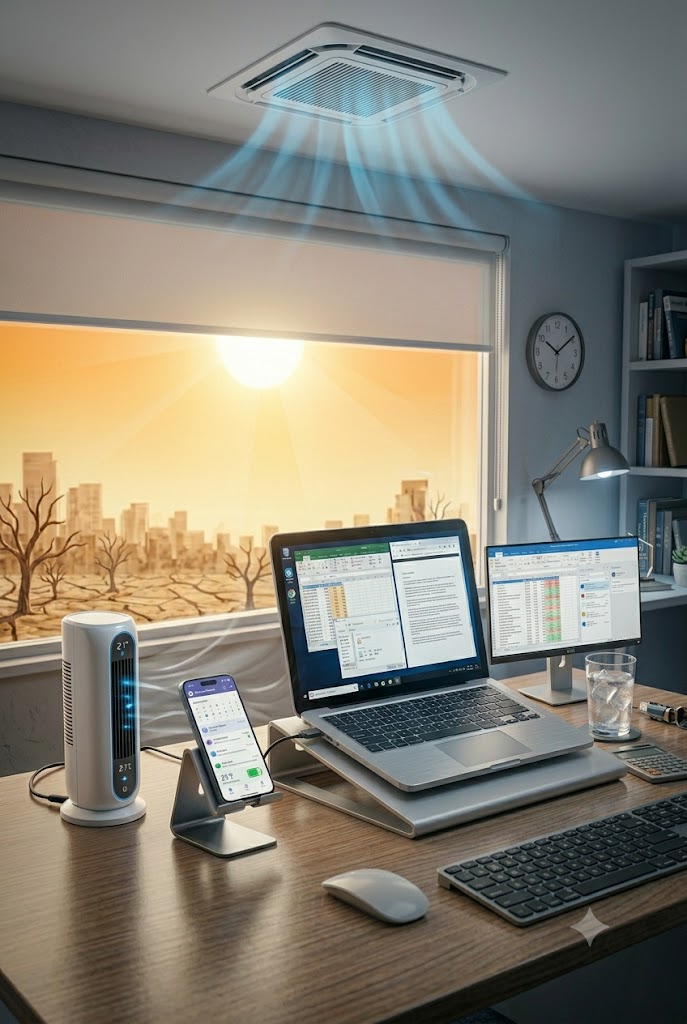
While the rest of the UK is currently adjusting their desk fans, hunting for the last cup of iced coffee, and trying to find the coolest spot in the building, here at Magikos IT, we are looking at the weather forecast with a mixture of awe and mild caffeine-induced anxiety.
We get it, working in this kind of heat is a proper British struggle. And let’s clear one thing up right away: this isn’t just a remote worker problem. While remote workers are battling stuffy spare rooms, plenty of office workers are dealing with large corporate buildings where the central air conditioning is wheezing under the strain, or older brick offices that feel like literal ovens.
But whether you are sitting at your desk in the office or working from your dining table, the deadlines haven’t disappeared. The work goes on, and you need your tech to continuously perform.
Computers don’t sweat to cool down. They rely on basic physics: pulling in the air from the room, running it over hot internal parts, and blowing it out. But when the ambient air in your workspace is already pushing past 30°C, your computer has to work twice as hard.
To help you get through the week without a technology meltdown, here is our ultimate insider guide to keeping all your tech happy.
The Red Flags: Is Your Computer Sweating?
Your computer is actually quite polite, it will usually try a few desperate tactics to save itself before it decides it needs an emergency nap. Keep an eye (and ear) out for this three-stage distress signal:
- The Jet Engine Effect: If your computer’s internal fans are suddenly roaring at top speed and sound like a mini plane preparing for takeoff, it is working at 100% capacity just to stay alive.
- The Sluggish Crawl: If a simple webpage, video, or document suddenly starts lagging, freezing, or stuttering, your computer is doing something called “thermal throttling.” It is intentionally slowing its own brain down to generate less heat. If it feels like it’s walking through wet cement, it’s hot.
- The Ultimate Drama (The Sudden Black Screen): If your machine instantly goes black without warning, it has hit its absolute limit and cut its own power to prevent itself from overheating. The catch? Unlike a normal shutdown, it happens instantly and will not save your open work.
Level 1: Rescuing Your Everyday Devices
You don’t need a computer science degree to rescue your daily hardware. Just follow these simple, everyday rules for the devices in your hands:
1. Laptops: Free the Vents
Laptops draw air from the bottom. If it’s sitting flat on a wooden desk, the gap underneath is tiny.
- The Golden Rule: Always use your laptop on a hard, flat surface. Under no circumstances should you work with it on blankets, beds, or your lap, which act like thermal insulation and completely suffocate the intake and exhaust vents.
- The Half-Inch Lift: Prop the back feet of your laptop up by half an inch using two plastic bottle caps, a couple of large coins, or a wire cooling rack from the kitchen. It sounds silly, but breaking that vacuum allows fresh air to flow underneath and helps cool the system down.
- Practice the “Power-Down Protocol”: Many of us are guilty of just slamming the laptop lid shut at lunch, assuming “Sleep” mode means it’s resting. In reality, sleep mode keeps the machine ticking over, generating continuous, trapped warmth. If you step away for more than 15 minutes, do a proper shutdown and let it dump its stored heat.
- Evacuate the Dust: Over time, dust acts like a cozy fleece blanket inside your laptop. If your fans are screaming constantly, use a can of compressed air to blast the dust out of the vents.
2. Desktop PCs: Clear the Open-Plan Clutter
If you are an office worker with a desktop “tower” PC tucked underneath your desk, it needs room to breathe. Open-plan layouts mean a lot of things get shoved under desks out of sight.
- The Fix: Make sure your PC tower isn’t surrounded by stacks of paper files, old gym bags, or spare office chairs. Hot air exhausts out the back of the tower; if your desk is pushed tight against a privacy screen or a wall, pull the tower out a few inches so that hot air can escape rather than looping right back into the computer’s intake vents.
3. Monitors: The Open-Plan Heat Amplifiers
People forget that large monitors and dual-screen layouts generate a significant amount of heat from their back panels. In an open-plan row of desks, you might be sitting directly opposite someone else, meaning the back of their monitor is radiating heat straight toward your desk setup.
- The Fix: Give your hardware some distance. Don’t sandwich your laptop right up against your external monitor’s hot exhaust vents. If rows of desks face each other, try to ensure there is a bit of a gap between the monitors so heat can rise toward the ceiling rather than getting trapped in the middle. Also, turn down the monitor brightness slightly, it lowers the power consumption and keeps the screens running cooler. If you have monitors that aren’t being used, turn them off opposed to them being on stand by. This will not only help reduce the heat that they radiate but also help keep the room they are in cooler.
4. Mobile Phones: Keep Them Out of the Hot Seat
Smartphones are incredibly sensitive to heat because they have no internal fans at all.
- The Fix: Never leave your phone face-up on a desk in direct sunlight coming through the office windows, or resting on top of your hot laptop chassis. If you are using your phone to take video calls or charge it, it will heat up rapidly. Keep it in the shade, take it out of its bulky protective case if it feels hot, and never leave it baking in a parked car during your commute. If your phone is hot, please wait for it to cool before charging it.
Level 2: Protecting Small Network Gear (Routers & Printers)
Whether it’s the main router in a small office branch or your home internet gateway, networking gear usually relies on “passive cooling”, meaning no fans, just vents. That makes them incredibly vulnerable.
- Break Up the “Tech Sandwich”: It is incredibly common to see a modem, a router, and a network switch stacked neatly on top of one another to save space. Each of these boxes radiates heat upward, creating a literal heat sandwich where they cook each other. Spread them out horizontally, by using a few coins or a couple of plastic bottle caps or use a cheap wire-mesh letter organizer to separate them vertically and create an air gap.
- Beware the “Junk Closet” Effect: Hiding your internet router, main switch, or backup drives in a tiny utility closet or breakroom cabinet keeps things neat, but without ventilation, that closet quickly becomes a mini-sauna. Prop the door open and set up a small desk fan to keep the air moving.
- Escape the Window Trap: Direct sunlight hitting a black plastic router or external hard drive creates a greenhouse effect, raising its internal temperature far beyond the actual room temperature. Move your core networking equipment into the shade. If your network equipment cannot be moved, you can reduce the sunlight by closing blinds and curtains or covering the glass to protect the networking equipment.
- Laser Printers are Secret Ovens: To melt ink onto paper, a laser printer’s internal heater has to crank up to a staggering 150°C to 200°C. Running a massive print job in a hot room will trigger a heat error. Even worse, high summer humidity makes paper slightly damp and limp, leading to endless paper jams. Turn it off when not in use rather than leaving it in standby mode and save big print jobs for the cooler mornings.
Level 3: Behind the Scenes (The Server Room Masterclass)
For those managing larger business setups, communal office server rooms, or infrastructure closets, the stakes are even higher.
- The Vulnerability of UPS and Batteries: Backup battery arrays are often the first things to fail in a heatwave. Anything above the optimal 25°C, the operational life of a battery is effectively cut in half. In extreme heat, they can swell, leak, or experience “thermal runaway” (which is a polite IT term for catching fire).
- Manage Your Aisles: Simply blasting the AC isn’t enough; you have to manage where the air flows. Ensure you are using a “Hot and Cold Aisle” setup—cold air into the front, hot exhaust captured from the rear. If cabling is messy or server blanks are missing, the air mixes and creates localized hotspots that fry specific switches.
- AC Redundancy and Smart Sensors: If a server room’s AC fails during a heatwave, the room can reach catastrophic temperatures in minutes. Critical setups need an N+1 system (a backup AC unit ready to take over) and environmental sensors to send automated SMS or email alerts the moment the room becomes too hot.
- Automated Graceful Shutdowns: If the cooling fails completely, you do not want your servers to experience a hard thermal crash like a laptop, which can corrupt databases and damage running systems. Configure network shutdown software so that if a critical thermal limit is met, the system automatically triggers a script to gracefully save data and close applications safely.
- Grid Instability: Extreme heatwaves put immense strain on the local electrical grid due to widespread air conditioning use. This leads to brownouts (drops in voltage), blackouts, and grid surges when the power returns. Ensure your surge suppression equipment is up to scratch and backup generators have plenty of fuel.
Avoid the “Fridge Myth”
Every single time the UK gets hot, someone genuinely asks us if they can put their overheating laptop or mobile phone in the fridge for five minutes to cool it down. Please, under no circumstances, do this.
Going from extreme heat to extreme cold causes instant condensation to form inside the sealed casing. Water on a live circuit board will instantly kill your machine. Stick to the shade, give it some airflow, and give it a rest!
Let’s look after our hardware this week, keep the air moving, and we’ll all get through the heatwave with our files, our infrastructure, and our sanity entirely intact!
For Further Information or advice, please contact the Magikos IT Team or fill in the form below and we will contact you.
Tel: 01344 204019
Email: [email protected]